Team workflow & @mentions
How a team of more than one collaborates on order updates — assignment, @mentions, the admin bar badge, per-update mutes, and round-robin auto-distribution.
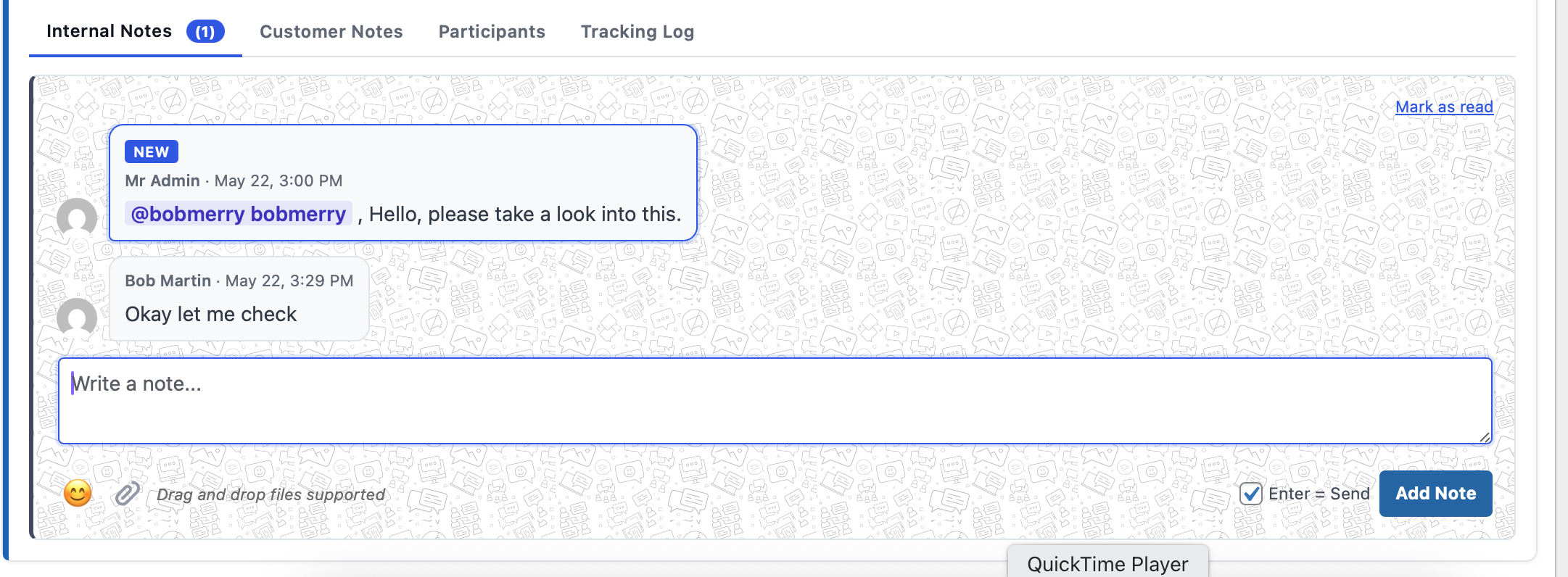
Internal reply with an @mention — team-only.
Internal notes
The Internal Notes tab is fully separated from Customer Notes — nothing posted here reaches the customer.
@mentioning a teammate
Type @ and start typing a name. Mentioned users get a dedicated email and an admin-bar badge.
Mentions bypass per-update mutes — tags always come through.
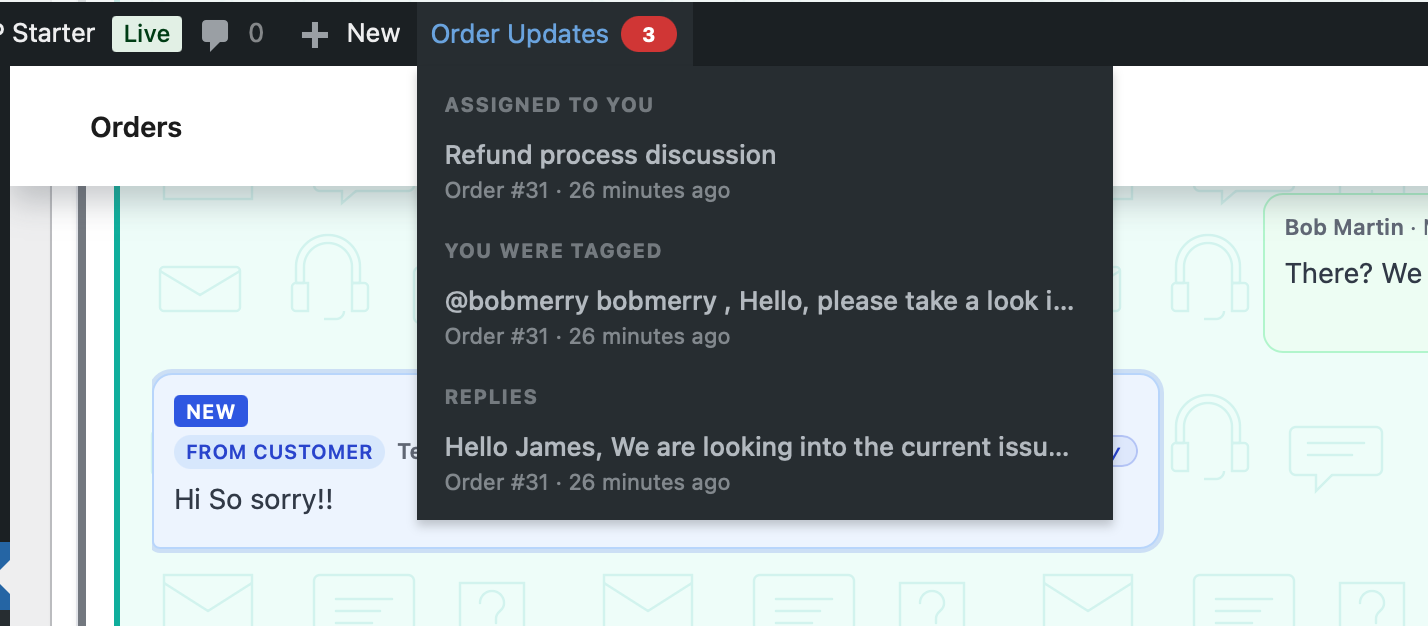
Admin-bar dropdown.
The admin-bar badge
A count badge appears on the admin bar when you have unread mentions, assignments, or customer replies on threads you own. Click to see recent items.
Refreshes every 30 seconds via WordPress Heartbeat.
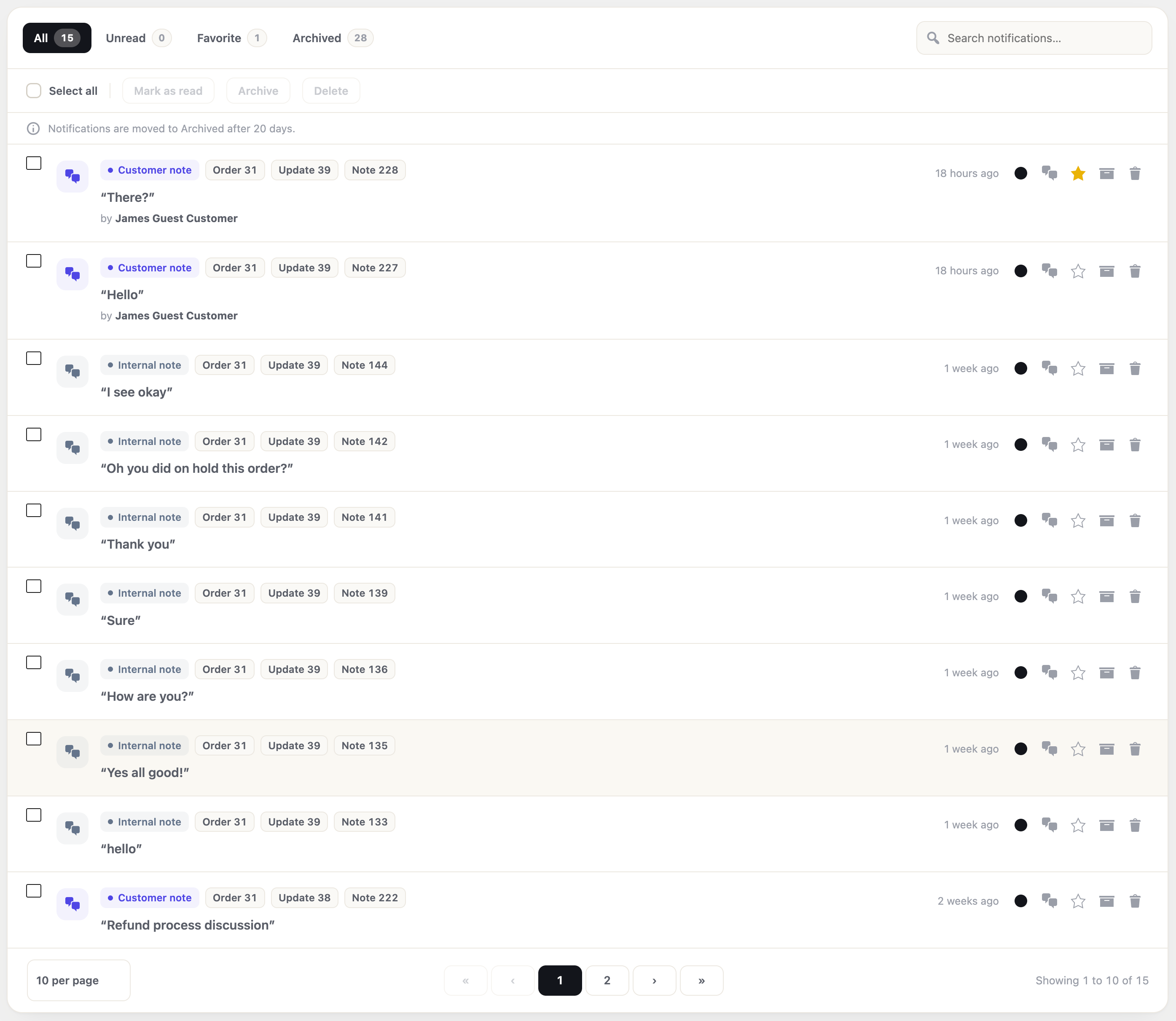
Notifications — All, Unread, Favorite, Archived, with actions for many rows at once.
The Notifications page
The “Show all” link in the admin-bar dropdown opens a full list under Order Updates → Notifications. Filter by All, Unread, Favorite, or Archived, search by title, and act on one row at a time or many at once — mark read, favorite, archive, or delete.
Old notifications move to Archived on their own after a set number of days, and archived ones are removed after a second set of days. You choose both on the Notifications settings tab.
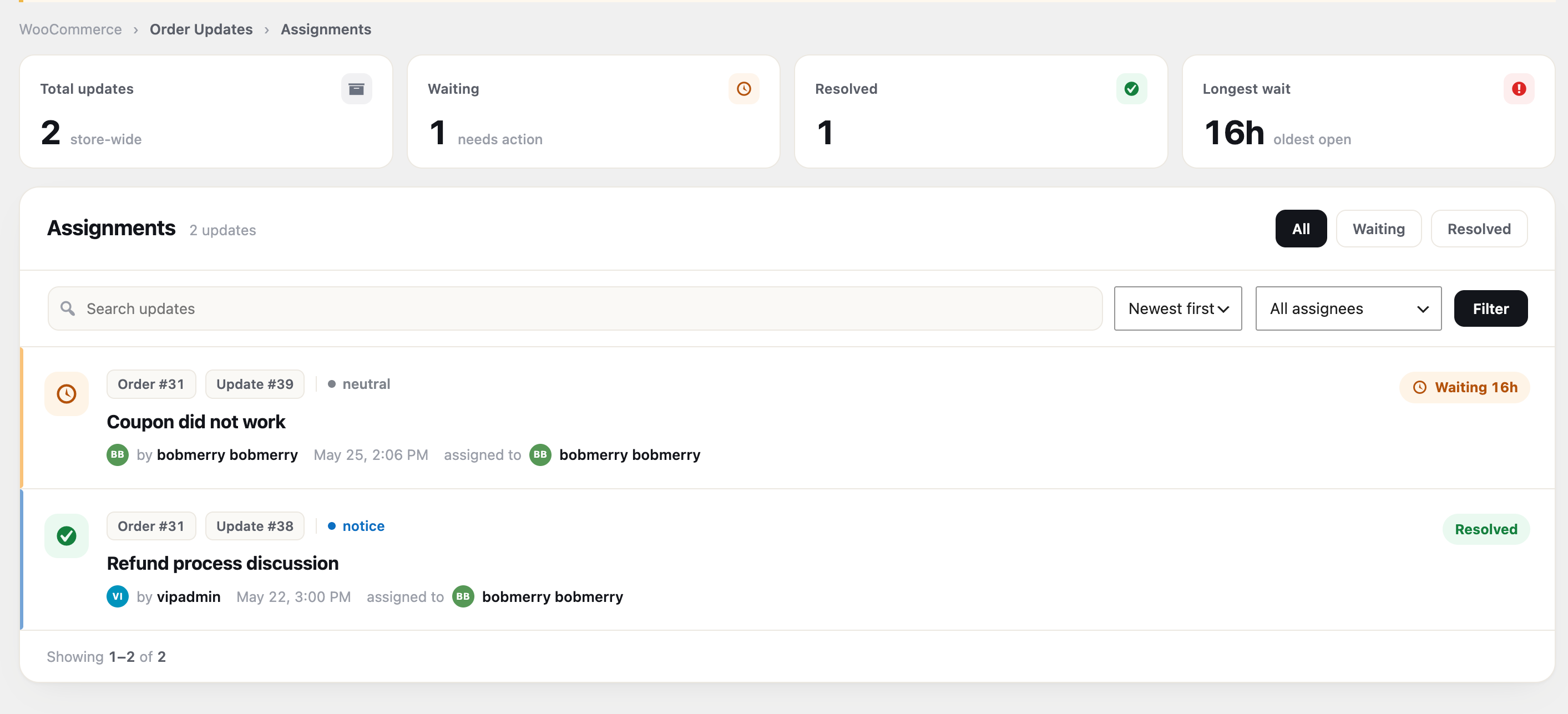
Assignments — summary cards plus a list you can filter by person.
The Assignments page
Under Order Updates → Assignments, each team member sees the updates given to them. Store managers see everyone’s, and can filter by person. The cards at the top show what is still waiting for a staff reply, what is done, and who has waited the longest — so nothing gets missed.
Filter by status (All, Waiting, Resolved), search, and sort. Each waiting row shows how long the customer has been waiting.
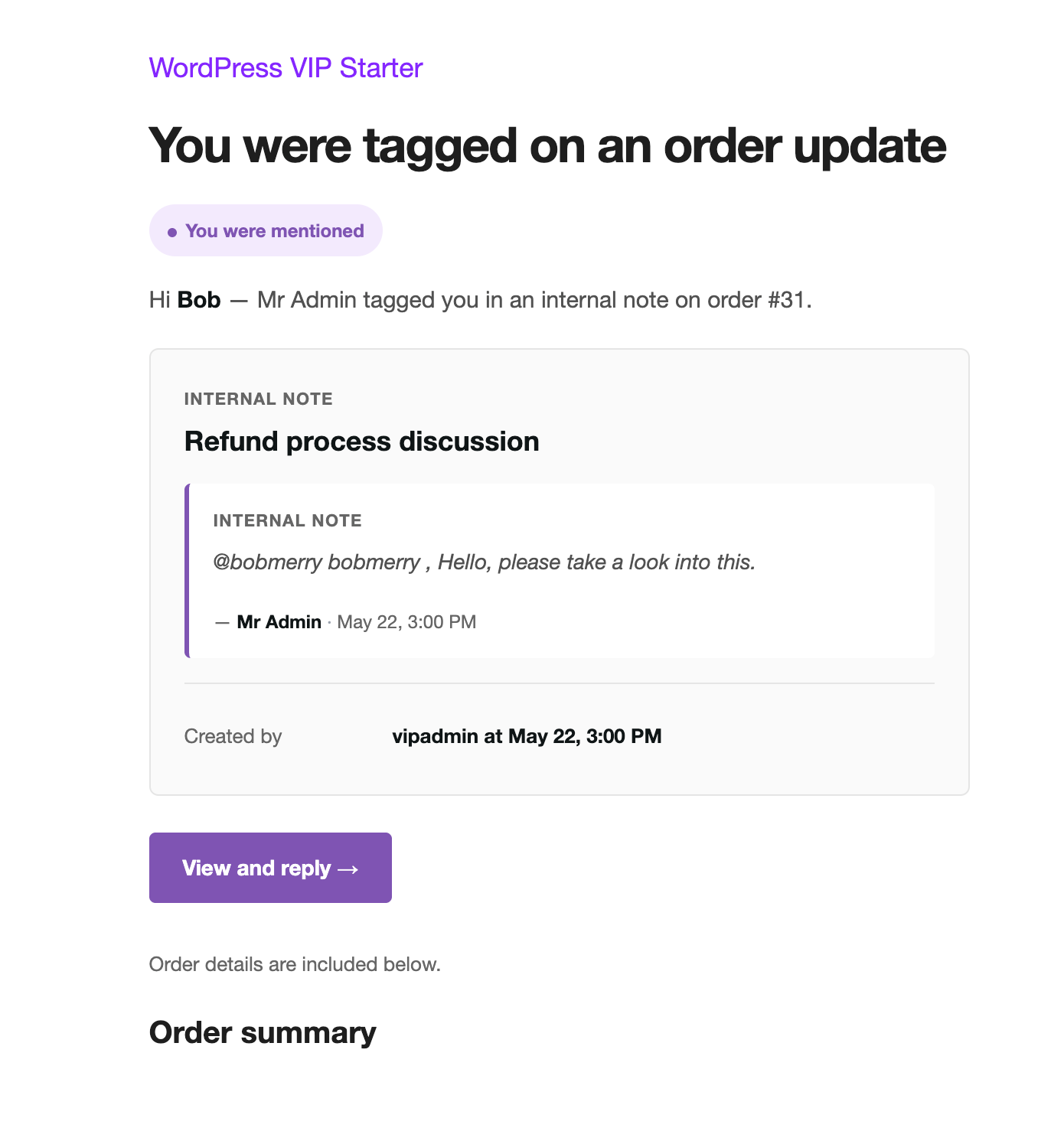
@mention email — quoted note, highlighted mention, direct link.
The @mention email
Quotes the note where you were mentioned, highlights the @name chip, links straight to that exact note inside the order edit page.
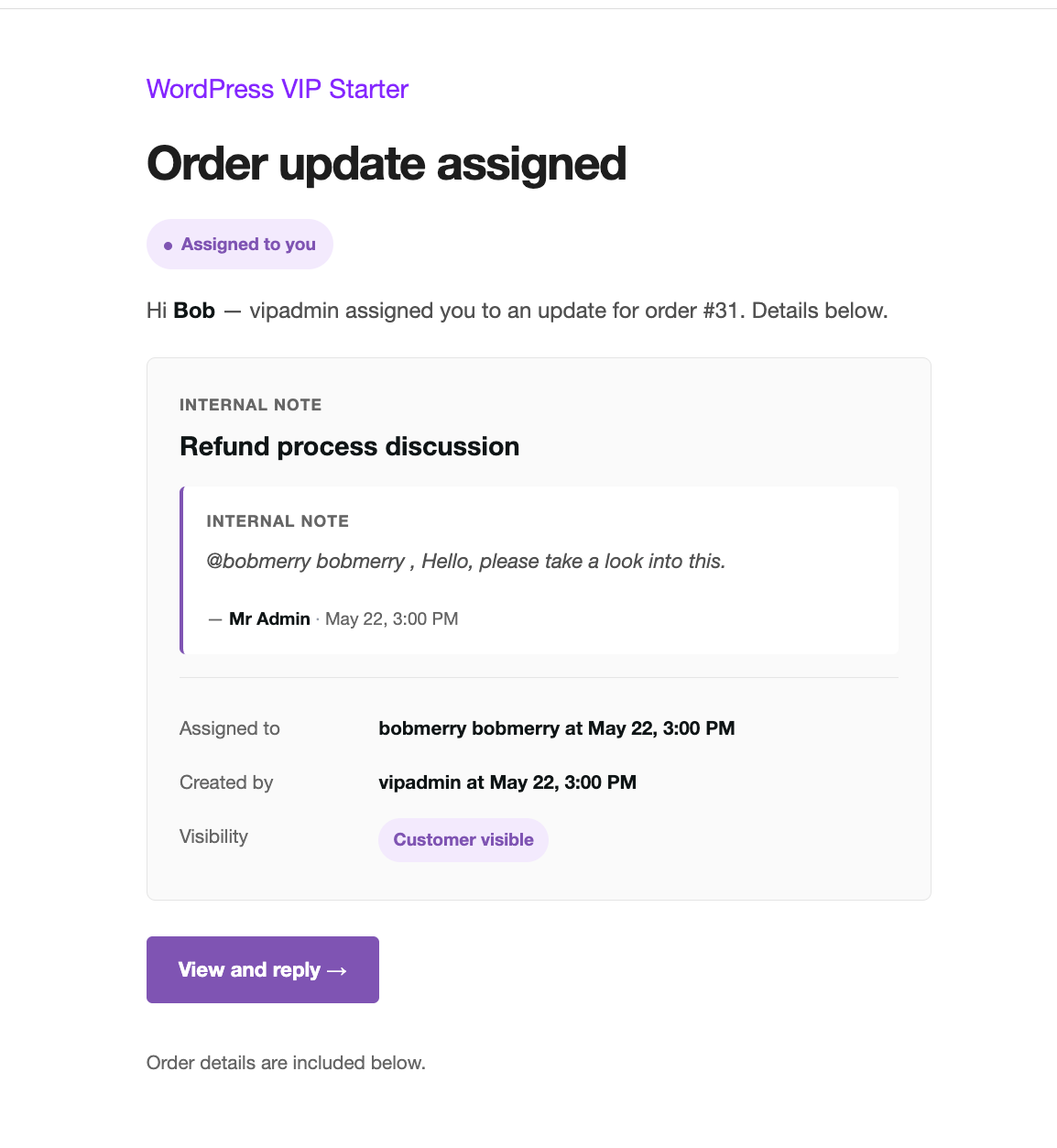
Assignee notification email.
Assignee notifications
Every assignment generates an email. The body summarises the update (title, order, customer name, current status) and links to the card.
Reassignments notify the new assignee only.
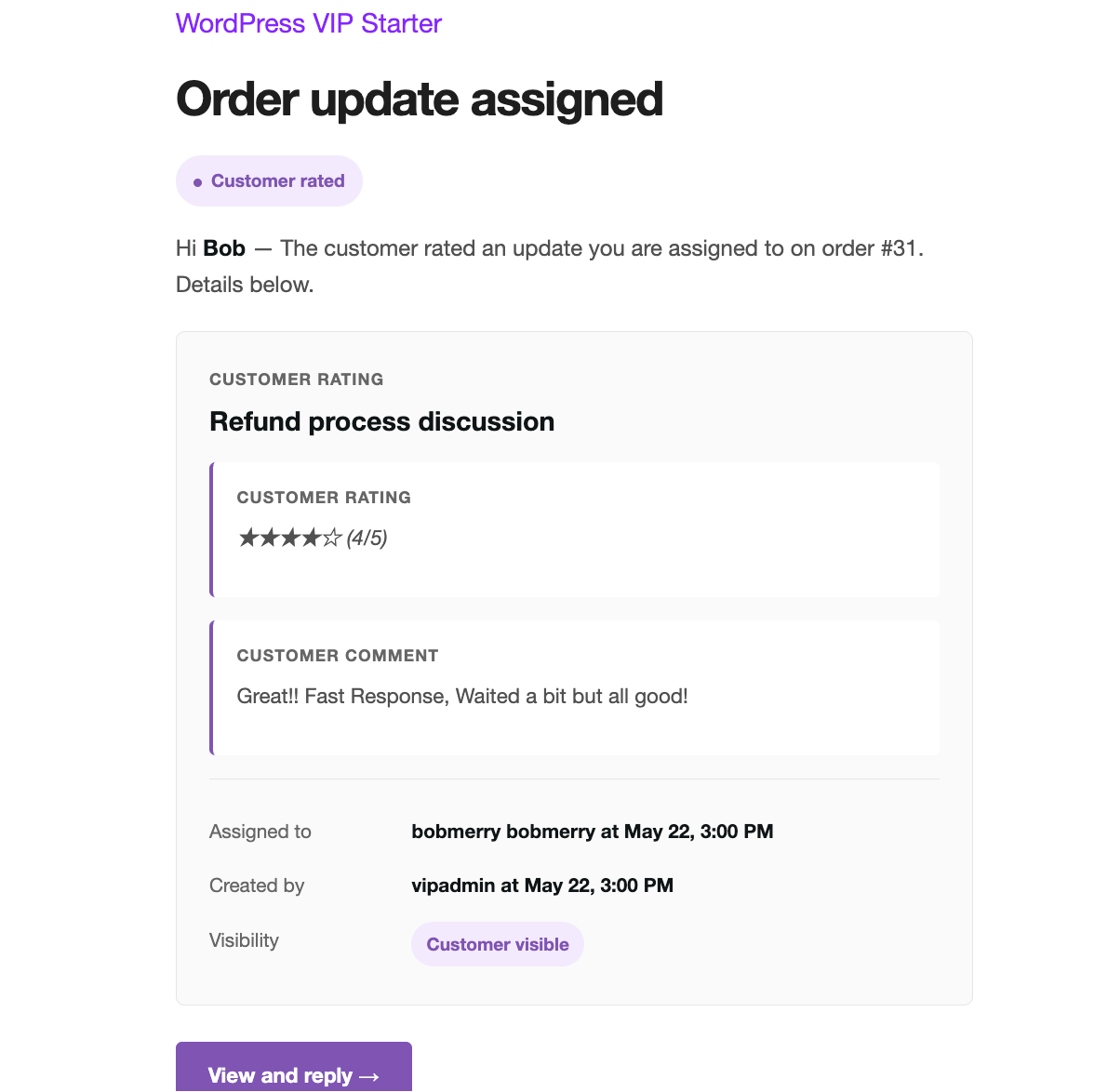
“Customer rated” assignee email.
“Customer rated” notification
When a customer rates an update you’re assigned to, you get this email. Contains the star count, the customer’s comment if any, and the standard detail block (assignee, creator, visibility) so you can react fast on detractor scores.
Subject and body are customisable under WooCommerce → Settings → Emails → Order Update Assignee Notification.
Per-update email mute & round-robin
The Get notifications toggle on each card mutes your emails for that single update; mentions bypass it.
Enable round-robin under Settings → Members to auto-distribute new unassigned updates across a team pool.