Creating updates
An update is one conversation about one order — an issue, a delivery question, a follow-up. You create them from the order edit page, fill in everything in one modal, and publish.
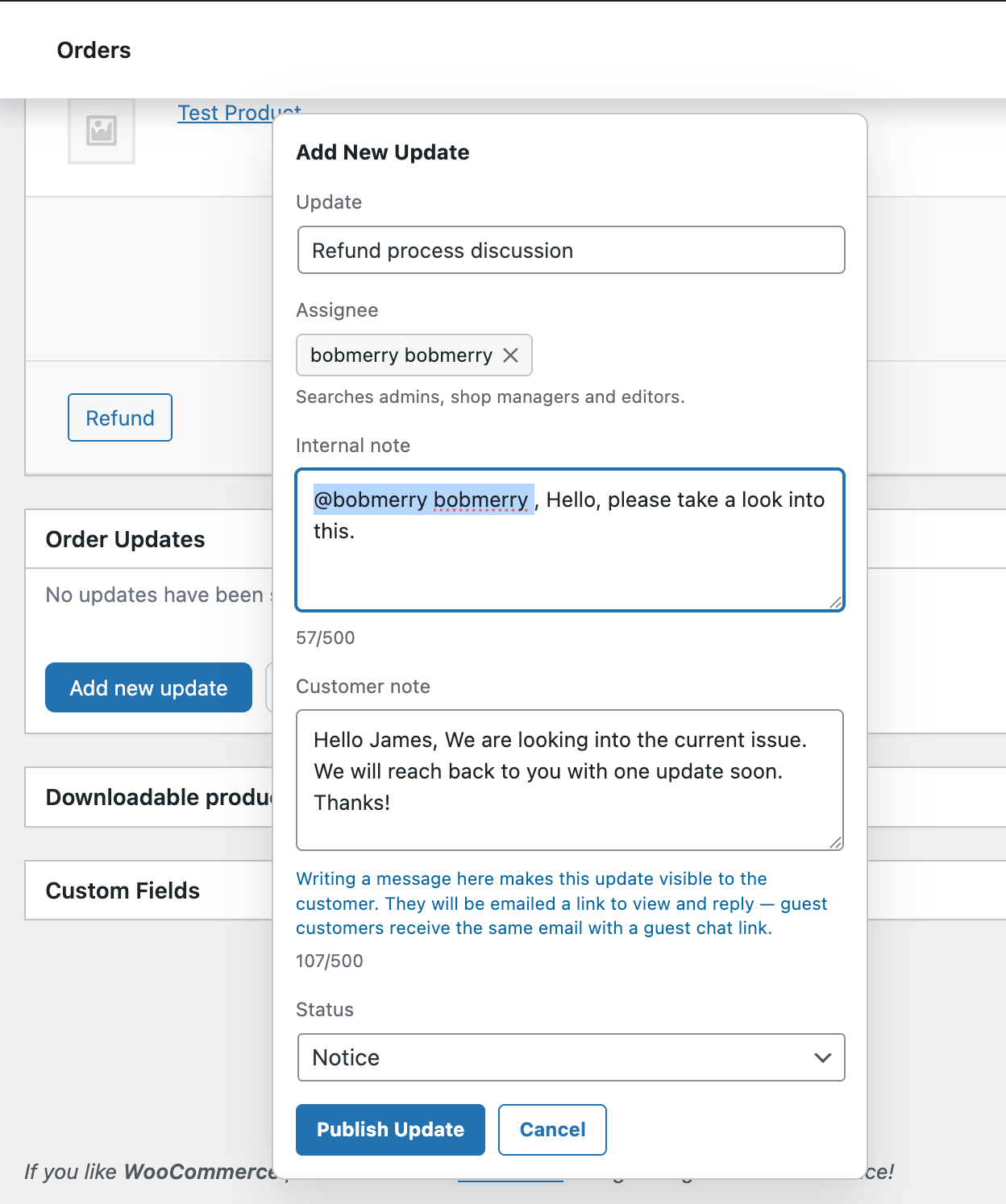
The Add New Update modal — one form, no multi-step wizard.
The Add New Update form
Click Add new update in the Order Updates meta box on any order. A single modal opens with all the fields you need. Nothing is required except the title — everything else is optional and can be added later.
Update
A short title for the thread. Customers see this verbatim if the update is visible to them.
Assignee
Searchable picker over admins, shop managers, and editors. The assignee is emailed when the update is created.
Internal note
For your team — never visible to the customer. Type @ to mention a teammate.
Customer note
Writing here makes the update visible to the customer and emails them a link to view + reply.
Status
Color-coded label. Defaults: Neutral, Notice, Warning, Resolved. Configurable under Settings → Statuses.
What happens when you publish
Hitting Publish Update does several things in one shot:
- The update card appears at the top of the Order Updates meta box.
- If you set an assignee, they get an email notification.
- If you wrote an internal note with an
@mention, the mentioned user gets a separate email and an admin-bar badge. - If you wrote a customer note, the customer gets an email with a secure link to their thread.
- The action is recorded in the update’s tracking log.
Editing an update later
Every field is editable after publish — title, assignee, status, customer visibility. Edits are recorded in the tracking log.
The whole update can be deleted from the action bar. Deletion preserves a full snapshot in the order’s deleted-update audit log.